We just upgraded our forum and site software from the Invision Community software V4 that we have been using for many years to their latest release of V5. A LOT of things have changed in this major version change so over a number of blogs we are going to post a few 'How To' guides or tips to get the most from the new system. I am going to do this via the Site Admin blog and explain some of the new features implemented with this new version of our website software.
First item is how to actually find new content as this has changed.
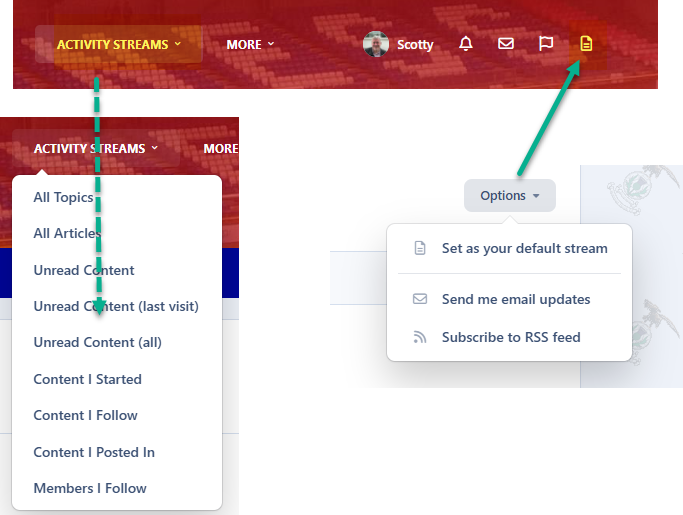
On the main menu there is a menu item called 'activity streams'. This contains pre-configured searches that will bring up results based on Articles, Topics and various other options. Try them out and see what you might like. If you find one you do like you can use the options window within the feed result to set it as your default. If you set it as default then you can view it from the little page icon next to your profile information as shown on the images below.
If you do not like any of the options, or want to tweak it slightly, you can click show filter and setup a custom feed using the filters then save it as a default in the same way.
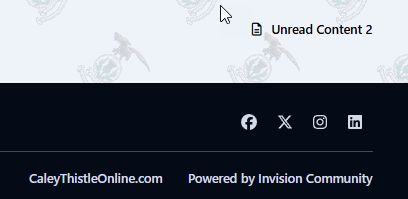
The same default new content search is also available at the bottom of each page ...







 1
1
Recommended Comments