




Adding CTO as a Web App to your phone

By Scotty in Website Tutorials
· 8,274 views
Don't want to load Edge or Chrome (or Safari) then navigate to CTO in your browser? Why not add CTO as a Web Application right on your phone screen? Its easy and there is little you need to do as its already been set up.
What is a WebApp?
In its simplest form (like here) it is basically comparable to a desktop shortcut or bookmark. It is not an installable application, but a link to a web-based application. On the back end of CTO we have it setup so that this link performs a little differently than the standard browser page. It uses more of the screen real-estate and also refreshes more often and pushes out notifications etc rather than just being static.
OK. I'm in. How do I set it up?
It is easy and more dependent on your browser than your phone (although I have an iPhone so some instructions may be different for Android).
Step 1: Navigate to https://caleythistleonline.com on your browser of choice (Edge/Chrome/Safari screenshots provided below).
Step 2: Follow the instructions in the screenshots below to add CTO as a Web App
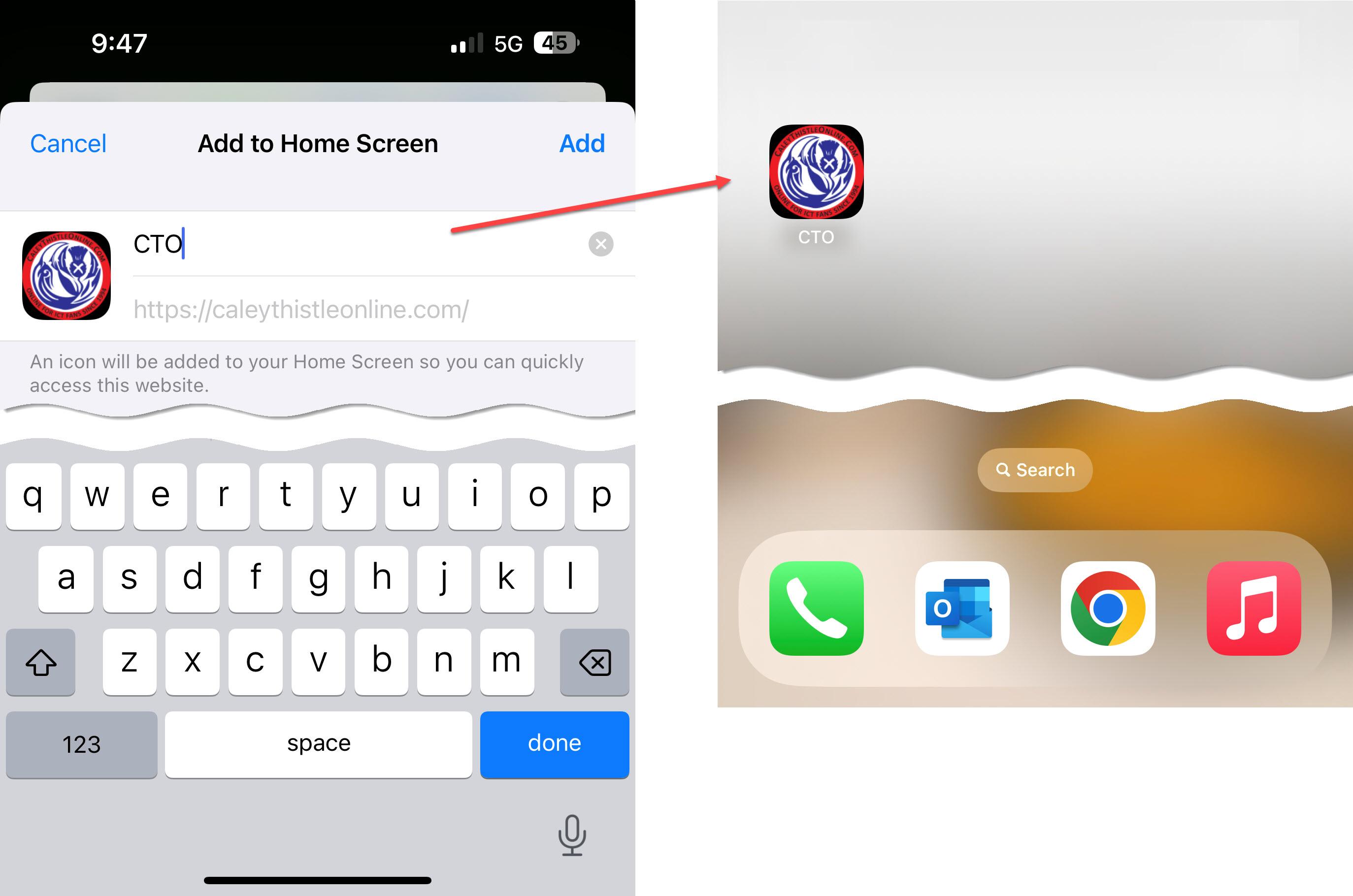
Step 3: Create and name the desktop shortcut
Step 4: close browser and load CTO from the app/shortcut
EDGE

CHROME

SAFARI

In the end, all of them bring you to this screen where you can name the shortcut and stick an APP on your phone screen like this
What does it look like?
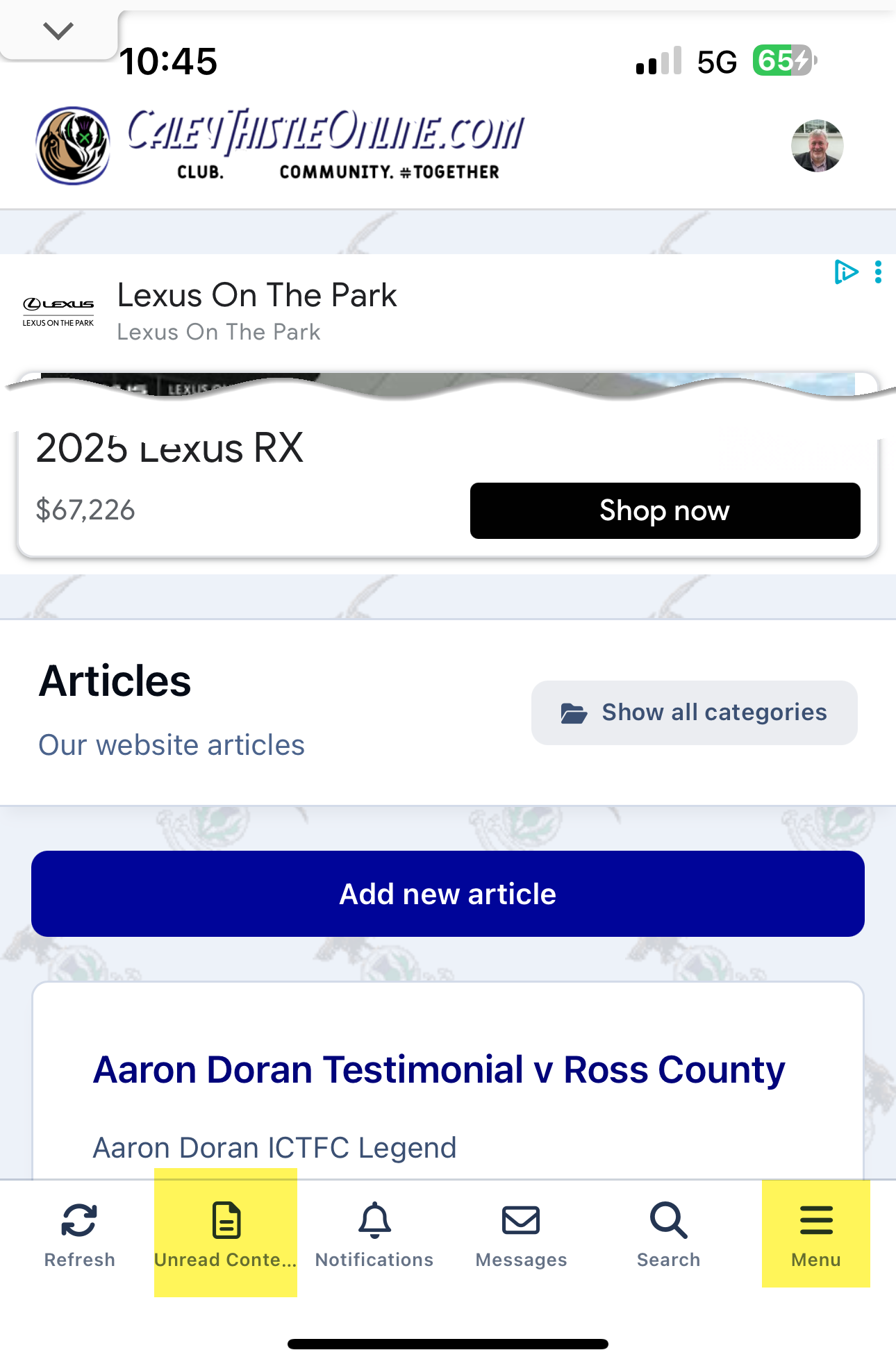
Once on your phone, it looks the same regardless of browser. There are far better navigation options at the bottom of the screen than the standard browser navigation and you can also bring up the full menu by clicking the menu button.
Recommended Comments